A Milestone for Us
As an indie developer, building an app that nobody knows about is the default state. You spend months working on features, performance, and details – hoping that someone will eventually take notice.
In issue 6/2024, Mac & i – Germany’s leading Apple magazine by heise – reviewed PDF Content Search. Under the title “Dokumenten-Spürhund” (Document Bloodhound), the app was put through its paces. For us as a small software company, this was a special moment – a place in the professional press, alongside established products that have been on the market for decades.
The editors’ verdict: the OCR search is convincing, but there’s room for improvement in usability and feature set. For us, this was doubly valuable – both as recognition and as a to-do list.
What We Learned from the Review
A professional review shows you things you can no longer see yourself. When you work on your app every day, you develop blind spots. The Mac & i testers used PDF Content Search the way a new user would – and that’s exactly what helped us move forward.
We took three points directly into development:
Relevance Sorting
The review noted that sorting search results by relevance was missing. In a search app, you want the most important results at the top – that’s a basic expectation.
Relevance sorting is now fully implemented. Search results can be sorted by the number of hits per document. The hit count is displayed directly in the results list. So you can immediately see which document contains the search term most frequently.
Drag & Drop
The review pointed out that files couldn’t be dragged out of the app. On macOS, you expect to be able to move files anywhere via drag & drop.
PDF Content Search now supports full drag & drop in both directions. Files from the results list can be dragged directly to Finder, Mail, or other apps. Conversely, folders and files can also be dragged into the app to add them to the search.
Open with External Application
The detour through Finder to edit documents is a thing of the past. Via the context menu, any document can be opened directly with the default application or any other application of your choice. “Show in Finder” is also just one click away.
What PDF Content Search Stands For
The review was also a good opportunity to ask ourselves: What is the core of this app? What should it be – and what deliberately not?
Focus on What Matters
PDF Content Search does one thing: find text in documents that other tools can’t find. Scanned invoices, scanned contracts, image PDFs – everything that’s invisible to Spotlight.
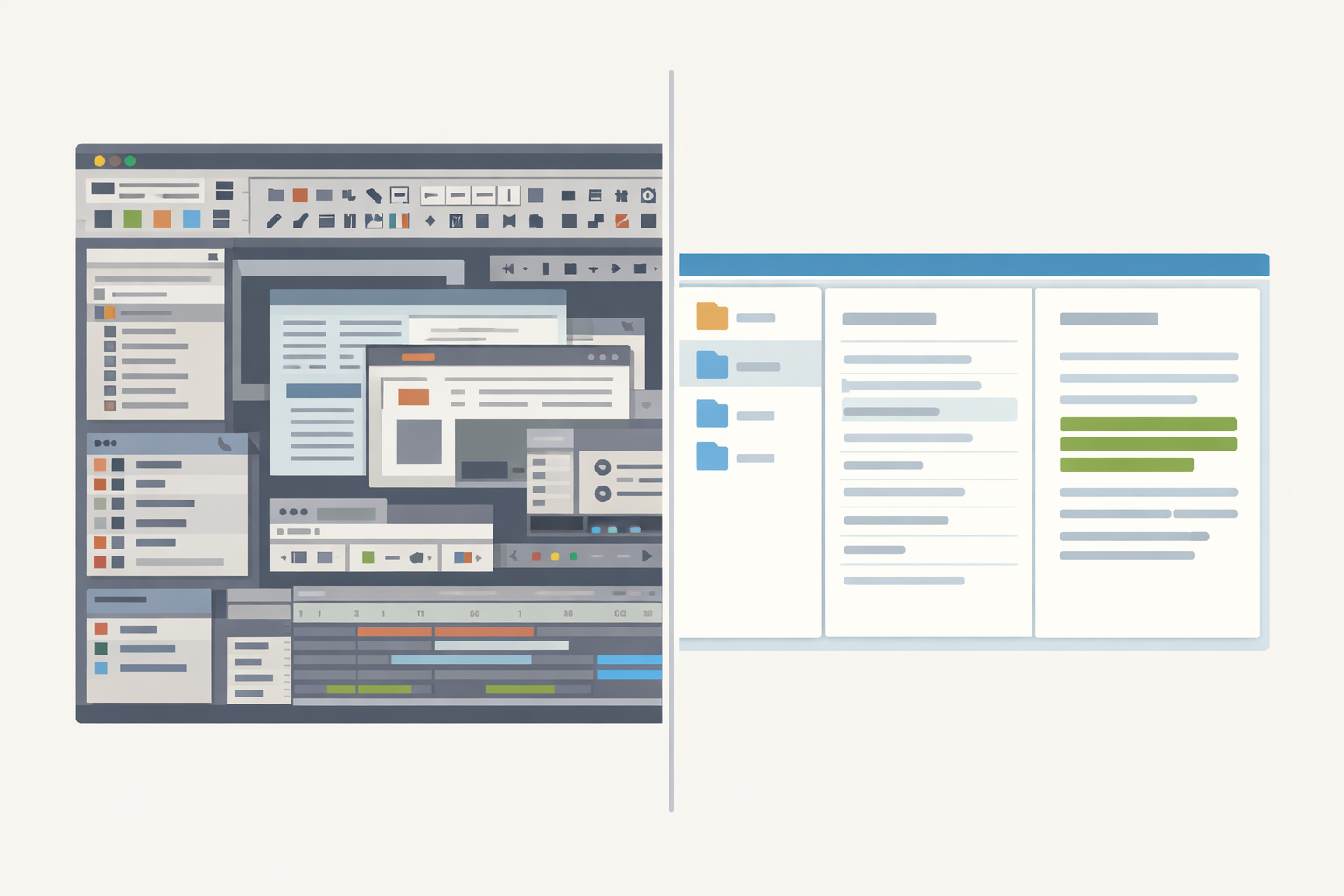
The interface is deliberately clean: folders on the left, results in the center, preview with hit highlighting on the right. You open the app, enter a search term, and get your result. No learning curve, no configuration, no manual.
If you want to manage, tag, automate, or organize documents in a database, you need a different tool – DEVONthink, for example, which is rightly considered the reference in this space. But if you just want to search, you don’t need a knowledge management system.
Hit Highlighting with Bounding Boxes
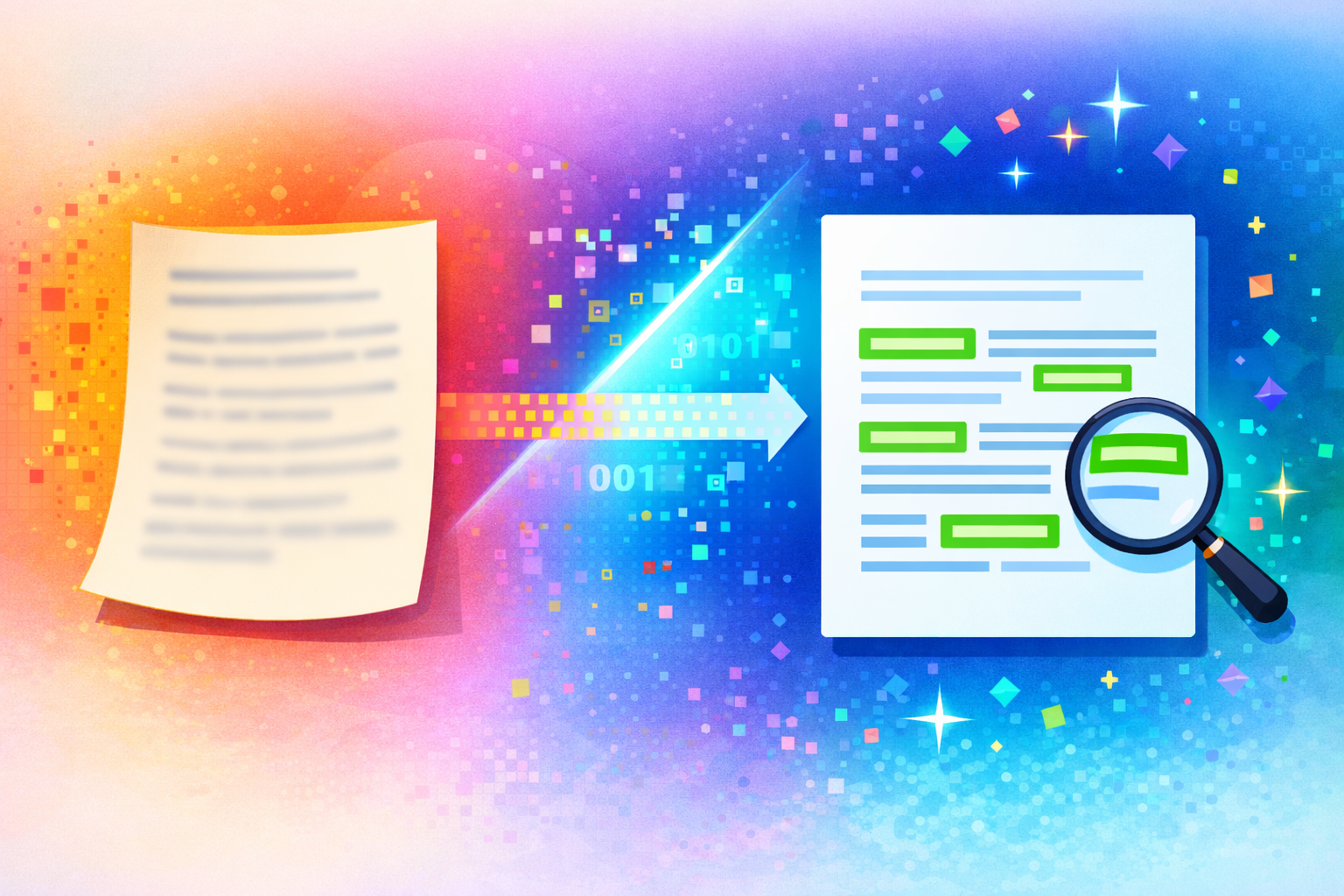
PDF Content Search doesn’t just show you which file contains your search term. It highlights the exact location on the page – with precise bounding boxes right in the document. No scrolling, no guessing, no searching again with Cmd+F. You see immediately where the hit is.
Fuzzy Search for Text and Numbers
The fuzzy search works for both text and numbers. It normalizes special characters and umlauts (ä is also found as ae, ß as ss) and finds matches regardless of separators. “10.000”, “10 000”, and “10000” are all found – just as “Mueller” also finds “Müller”.
OCR – The Invisible Core
The real work happens in the background. PDF Content Search analyzes every page via OCR, recognizes text in images, and builds a full-text index. The initial indexing of a large collection takes time – after that, only new or changed files are re-indexed, automatically and in the background. The actual search then takes less than half a second, even across tens of thousands of documents.
The OCR uses Apple Vision and runs completely locally – on the Neural Engine for Apple Silicon, on the GPU for Intel Macs. No cloud, no data transfer. Your documents never leave your device.
Your Files Stay Your Files
PDF Content Search works directly with your folders. The original files stay where they are – in Finder, on your hard drive, in your familiar filing system. There’s no import, no proprietary database, no lock-in.
You can uninstall the app at any time and still have all your files. That sounds obvious – but it isn’t with some alternatives.
OCR Search on the Mac: A Comparison
There aren’t many options for OCR-based document search on the Mac:
| Tool | Price | OCR included? |
|---|---|---|
| Spotlight | Free | No – scanned PDFs invisible |
| HoudahSpot | $34 one-time | No – uses Spotlight index |
| EagleFiler | $69.99 one-time | No – external OCR needed |
| DEVONthink Standard | $99 one-time | No |
| DEVONthink Pro | $199 one-time | Yes |
| Adobe Acrobat Pro | ~$240/year | Yes |
| PDF Content Search | €9.99/month or €89.99 Lifetime | Yes |
If you want to make scanned documents searchable, you need OCR. With most alternatives, it’s either not included or costs significantly more.
What’s Next
The Mac & i review was a milestone for us. Not because everything was perfect – but because it showed that the problem we’re solving is relevant. Thousands of Mac users are looking for a way to truly search their documents. Spotlight isn’t enough. And not everyone needs or wants a complex document management system.
We continue to work on PDF Content Search. On performance, usability, and new features. The goal remains: searching must be simple. And find everything – including what others overlook.