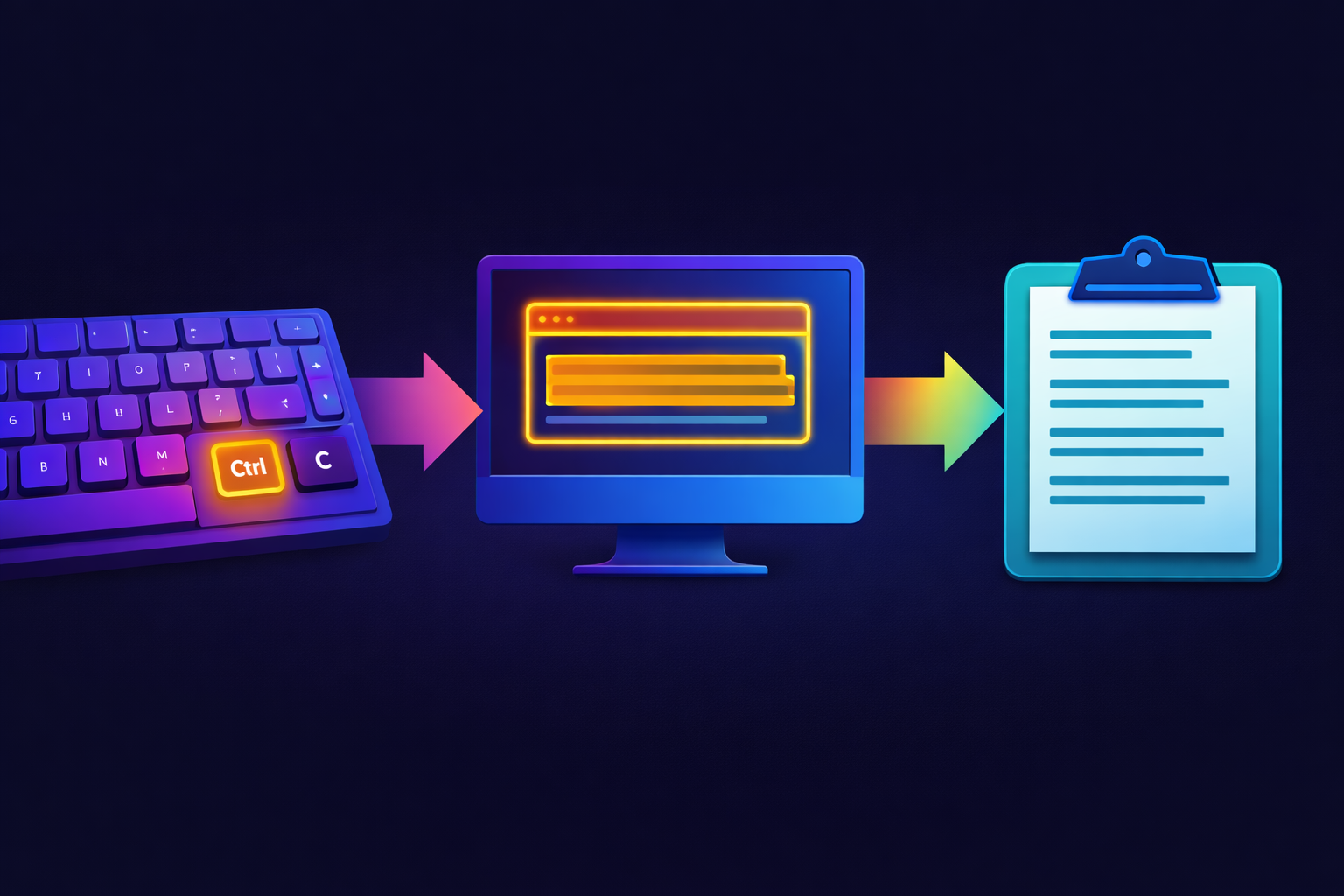
We've all been there: You see text on screen, want to copy it – and it just doesn't work. Why is that? And is there a solution?
The Daily Copy-Paste Struggle
It's 2:30 PM. You're sitting in a meeting and someone shares their screen. There's a URL on the slide that you need to note down. You wait until the presentation is over, ask for the slides – but they'll come "later via email."
Or: You're working in Jira. You want to copy the ticket ID. But as soon as you hover over it, a popup appears. You try faster. It doesn't work. You type the ID manually. Character by character. Like it's 1995.
This is absurd. The text is right there. You can see it. But you can't copy it.
Why Does Copying Sometimes Fail?
The reasons are varied – and usually technical in nature:
1. Interactive Web Elements
Modern web apps are packed with JavaScript. Hover effects, tooltips, dropdown menus – everything reacts to your mouse. The problem: These interactions take priority over text selection.
Typical examples:
- Jira, Confluence, Notion
- CRM systems like Salesforce
- Project management tools
2. Intentional Copy Protection
Some websites don't want you to copy their content. They disable via JavaScript:
- Right-click
- Text selection
- Keyboard shortcuts (Ctrl+C / Cmd+C)
It's annoying, but technically simple to implement – and just as simple to bypass.
3. Text Is Actually an Image
This is the most common case that many don't recognize:
- Scanned PDFs – A scan is just a photo. The "text" is pixels.
- Screenshots – Someone sends you a screenshot with code or an error message.
- Video overlays – Subtitles burned into the video.
- Graphics and presentations – Text in images, charts, infographics.
There's no text to copy here. There are only pixels that look like text.
4. Protected Documents
Some PDFs have explicit copy restrictions. Excel files can have locked cells. DRM-protected e-books prevent copying intentionally.
The Classic "Solutions" (And Why They're Frustrating)
Manual Typing
The classic approach. Always works – but costs time and produces typos. For a ticket ID, maybe okay. For a code snippet? Not an option.
Screenshot + Online OCR
You take a screenshot, upload it to a website, wait, copy the result. Three minutes for something that should take one second. Plus: Your data ends up on third-party servers.
Browser Developer Tools
For tech-savvy users: Search for the text in the HTML source code. Sometimes works, but cumbersome and often hopeless with dynamic content.
"Print as PDF"
A workaround for some protected websites. But unreliable and destroys all formatting.
The Real Question: Why Isn't There a Tool for This?
Good question. On Windows, there's the PowerToys "Text Extractor" feature. On Mac? Nothing comparable for a long time.
The requirements would be simple:
- "Freeze" the screen
- Select an area
- Extract text
- Copy to clipboard
This should happen in under a second. No cloud. No upload. No registration.
FreezeText: The Solution
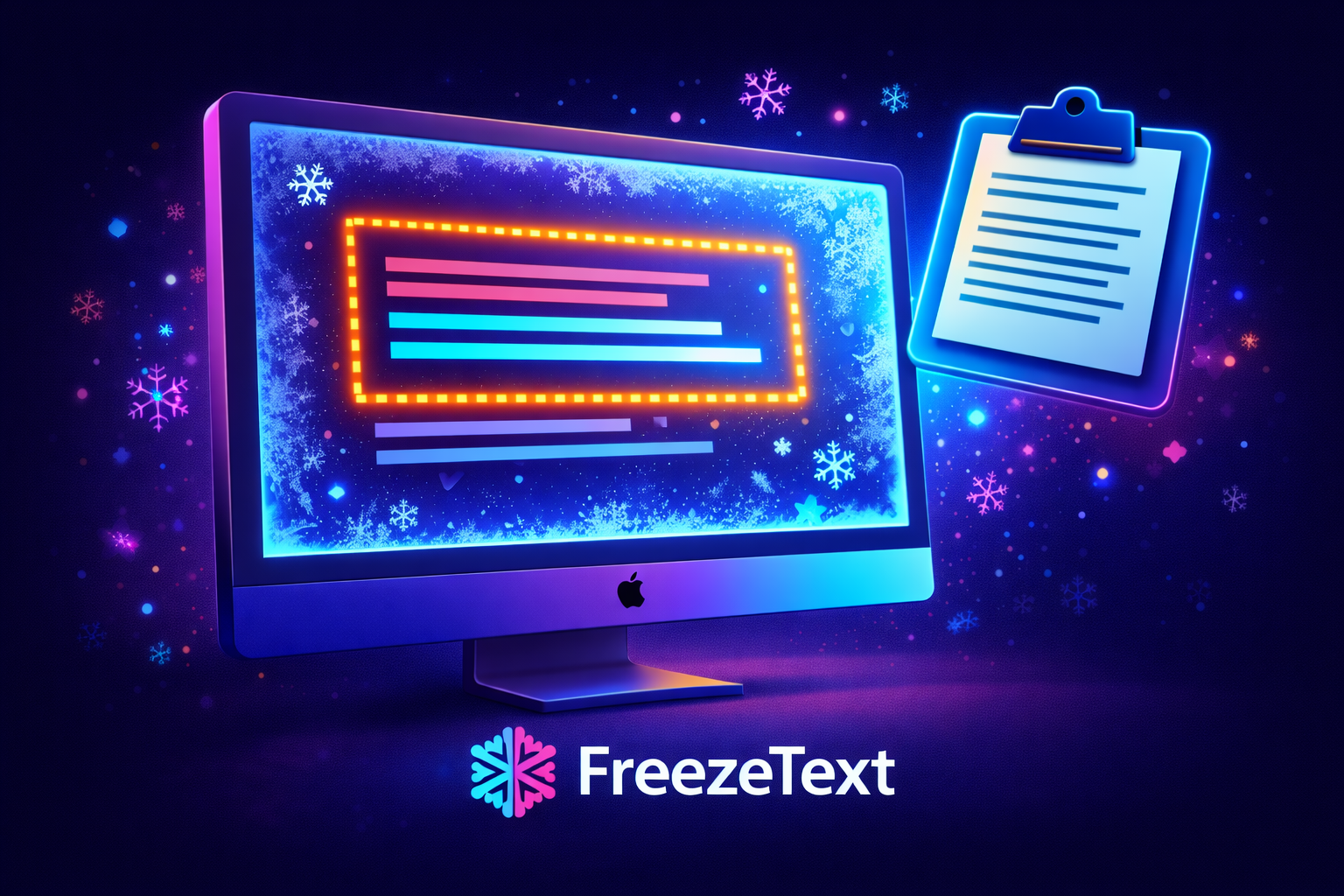
That's exactly why we developed FreezeText.
How it works:
- Press a hotkey (default: ⌃⌥⌘T)
- Your screen gets "frozen" – a screenshot
- Draw a rectangle around the text you want
- The text is recognized via OCR and instantly in your clipboard
That's it. No further steps. No upload. No waiting.
What Makes FreezeText Special:
Completely Offline
OCR recognition runs directly on your Mac. Your data never leaves your device.
Smart Post-Processing
FreezeText can automatically:
- Remove line breaks (text copied from PDFs often has unnecessary breaks)
- Fix hyphenation ("exam-ple" → "example")
- Clean up excess whitespace
Multi-Display Support
Multiple monitors? FreezeText works on all of them simultaneously.
History
All captured texts are saved. You can retrieve them later.
Concrete Use Cases
For Developers
Solving the Jira Problem
Ticket IDs, descriptions, comments – all copyable without hover effects getting in the way.
Extracting Code from Screenshots
Stack Overflow shows code as an image? GitHub issue only has a screenshot? Extract the code and paste it directly into your IDE.
Capturing Error Messages
Terminal output, compiler errors, log files – sometimes in contexts where copy/paste doesn't work.
In Daily Office Work
Scanned Documents
Invoices, contracts, old documents – if you can read the text, you can copy it.
Data from Charts
Numbers from diagrams, values from graphics – without tedious manual typing.
Protected Websites
Research databases, professional portals, archives – many block copying even though usage is legal.
For Content Creators
Text from Videos
YouTube subtitles, tutorial instructions, webinar slides – everything becomes copyable.
Conclusion: Visible Text Should Be Copyable Text
It's 2026. We have AI that generates images and writes code. But copying text from a screen is sometimes still a problem.
It doesn't have to be.
FreezeText solves a small but everyday problem: If text is visible, it should be copyable. Period.
FreezeText is free, runs offline, and was developed by Jürgen Koller Software GmbH.